n8n vs LangGraph for Production AI Workflows: Which Should You Use?
When to use n8n vs langgraph for ai builds based on your stack, dev team, and more.
Katarzyna Rojewska
September 29, 2026
Processing binary data in n8n trips up a lot of people when they get started. Whether you need to upload a spreadsheet through a form, extract text from a PDF, convert JSON to a downloadable CSV, or pass an image between nodes, binary data is the critical building block that makes file handling work inside n8n workflows.
n8n recently dropped a big update that makes binary data easier to work with than ever. You can now access binary data from previous nodes using expressions, rename binary properties directly in the Edit Fields (Set) node, and handle file operations with far less friction. This guide walks through every major binary data pattern: getting files in, extracting information out, analyzing images, and converting between formats.
Binary data in n8n is any file-based data, including images, PDFs, spreadsheets, and documents. Unlike JSON text data, binary data appears under the Binary tab in node output. n8n provides three core nodes for handling binary files: Extract From File (like binary to JSON), Convert to File (JSON to binary), and Read/Write Files from Disk.
If you have worked with n8n before, you know that most data flows through workflows as JSON. Binary data is different as it represents actual files: a JPEG image, an Excel spreadsheet, a PDF report, or any other file format. When a node outputs binary data, you will see it under the Binary tab alongside the usual Schema, Table, and JSON views.
Each binary file has a binary property name (like "data" or "binary file") along with attributes such as file name, MIME type, and file size. Understanding this binary key is important because you reference it by name when passing files between nodes.
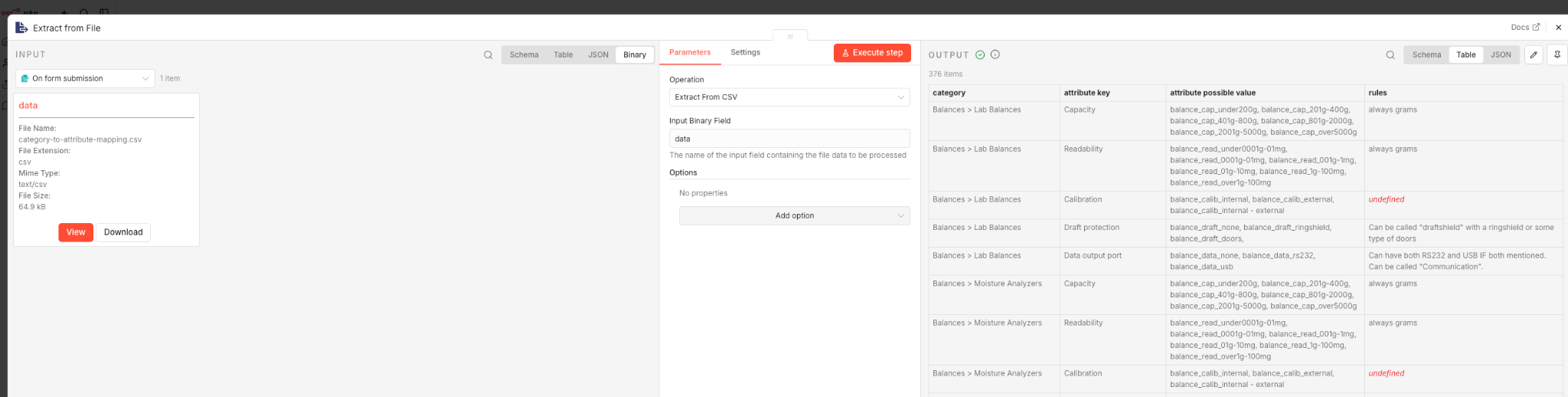
Before you can do anything with a file, you need to bring it into your workflow. There are several common ways to get binary data into n8n, and the right approach depends on your use case.
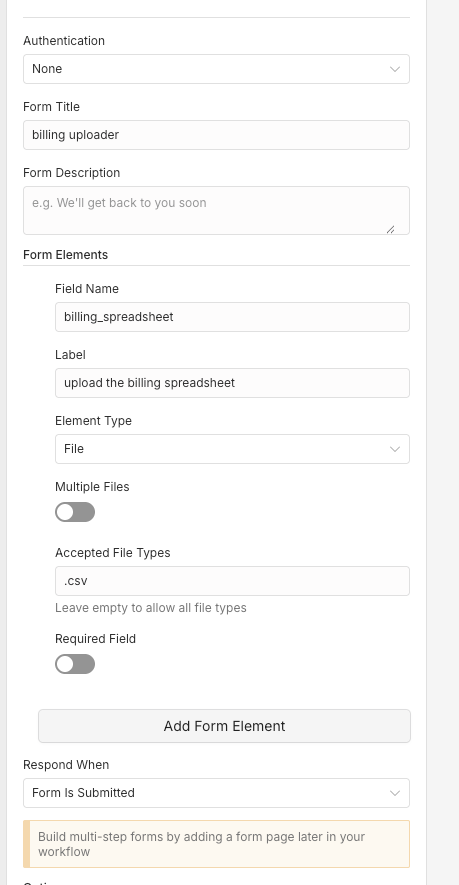
The n8n Form Trigger node lets users upload files directly into a workflow. Add a field with the element type set to "File" and you can accept single or multiple file uploads. When someone submits the form, the uploaded file appears as binary data in the node output.
You can control the accepted file types and whether the field is required. This is probably the easiest way to get binary data into n8n for user-facing workflows.
You can download files from Google Drive, Dropbox, or any cloud storage node. The Google Drive node can target a specific folder and download a file, which then appears as binary data in the output. This works as a trigger (watching for new files) or as a mid-workflow step when you need to grab a specific document.
The HTTP Request node can download files from any URL. If an API returns a file (like a report or an image), the HTTP request node requires the response to be set to binary mode so it returns the raw file data. This is especially common when working with a downstream API that sends attachments or generated documents. It also works for downloading texts, images, and other file types from any publicly accessible URL.
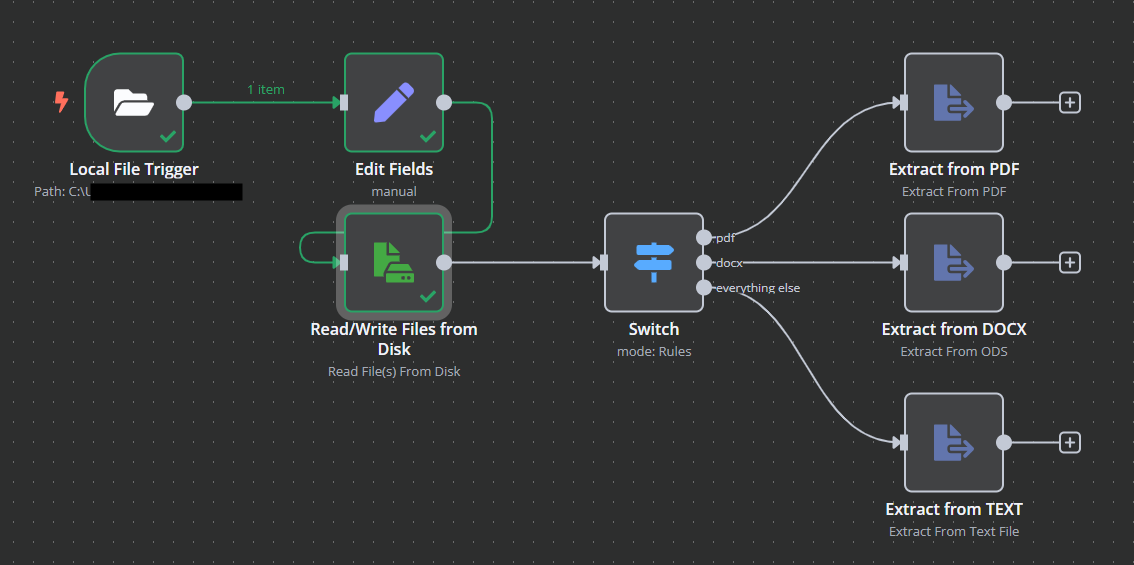
For self hosted n8n instances, you can read files directly from the server's file system using the Read/Write Files from Disk node. FTP connections also bring files in as binary data. These methods are common in enterprise setups where files land in a specific directory on the server.
The Extract From File node is one of the most useful nodes in n8n for working with binary data. It takes a binary file and converts its contents into structured JSON that the rest of your workflow can process.
The most common use case is spreadsheets. If someone uploads an XLSX file through a form, the Extract From File node pulls out every row and column as JSON objects. Each row becomes a separate item you can loop through, filter, or send to other nodes.
The Extract From File node uses an Operations dropdown to select the source file format. Here is the complete list of supported operations:
Make sure you select the correct operation for your file type. If your file is an XLSX spreadsheet, do not leave it set to CSV. They are different formats and require different parsing, just like writing different Python code for each.
The most common mistake with this node is getting the binary field name wrong. The node has an "Input Binary Field" parameter that defaults to "data" but the actual name depends on the upstream node. Look at the output of the previous node and find the binary property name at the top of the Binary tab. Form uploads often name it "binary file" or something custom. Copy that name exactly into the Input Binary Field parameter.
For certain operations (JSON, ICS, Text File, and Move File to Base64 String), you can also set a custom destination output field name to control where the extracted data lands in your output JSON.

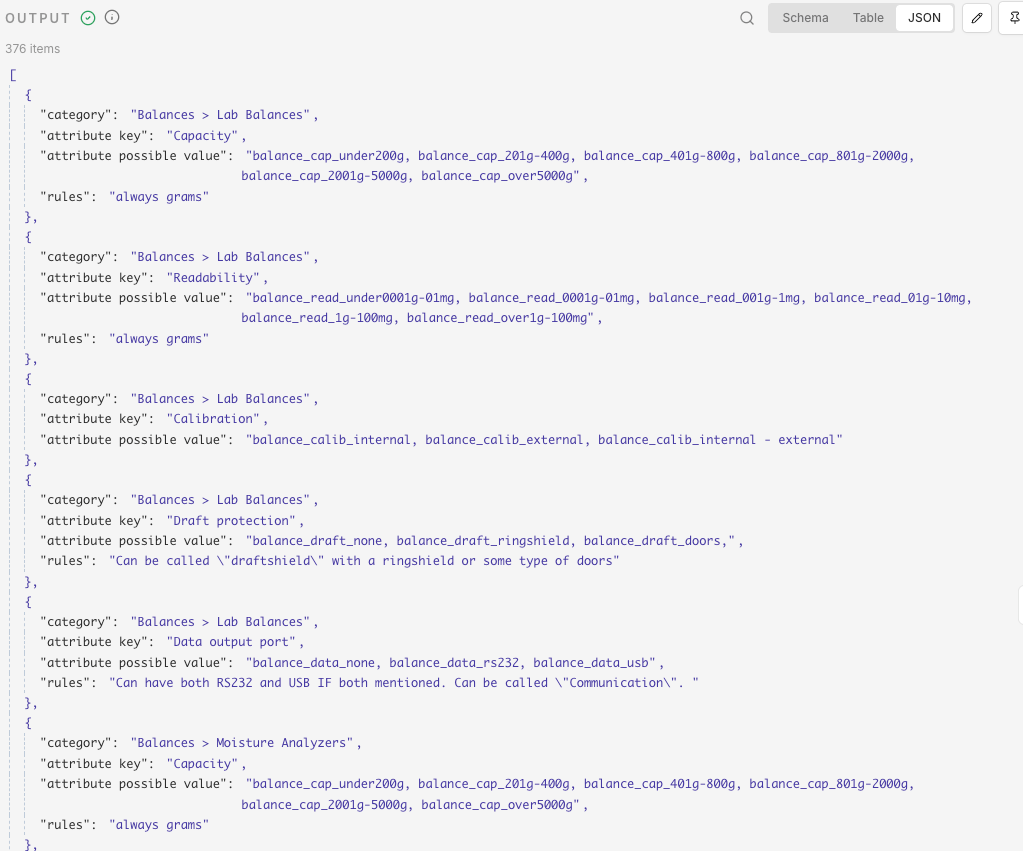
After extraction, you will see structured JSON output instead of binary data. For a spreadsheet, each row appears as a separate item with column headers as keys. The binary tab disappears because the data has been successfully converted to JSON.
The Extract From File node works great for structured files like spreadsheets and CSVs. But what about PDFs with complex layouts, scanned documents, or images? That is where AI-powered extraction comes in.
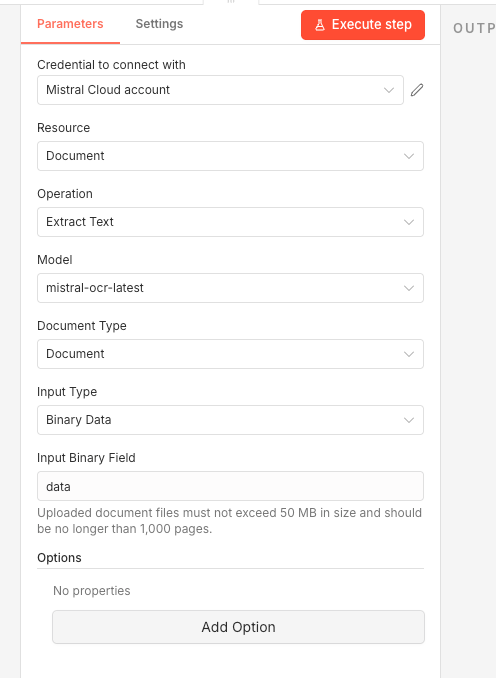
The Mistral node in n8n is excellent for OCR extraction. It can pull text from PDFs, scanned documents, and images with high accuracy. The node outputs clean markdown text that you can then process with code nodes or send to a large language model for further analysis.
Configure the Mistral node by selecting "Extract Text" as the operation, set the input type to binary data, and point it at the correct binary property name. Note the limitations: files cannot exceed 50 megabytes and documents cannot be longer than 1,000 pages.
After extraction, the binary data is replaced with structured text output. You can clean this up with code nodes, send it to an LLM for summarization, or pipe it into downstream nodes. The result is much cleaner data for the rest of your workflow pipeline.
Need to analyze what is in an image rather than extract text? Google Vision and Gemini can help. The Gemini node accepts binary data as input and can answer questions about an image's content.
Set up your Gemini account (the free tier works for testing), choose a model, and write a prompt in the text input field. Point the node at your binary file name and execute. For example, asking "What company logos are present in this image?" and specifying "output as JSON only" returns structured data you can work with programmatically.
This pattern is useful for photo classification, extracting information from ID documents, reading product labels, and any workflow where you need to understand image content. A real-world example: at a recent hackathon, this approach was used to grab specific elements from ID documents and determine whether images were in color or black and white.
n8n released a major update with new feature flags that change how you work with binary data in your workflows. Thanks to these changes, two features now solve problems that users have been stuck on for a long time. You may need to support manually enable these features if your instance has not auto-updated, so check your n8n version to make sure you have access.
The Edit Fields node (also called the Set node) now supports a binary data type. Previously, you could only work with strings, numbers, booleans, arrays, and objects. Now you can rename your binary properties directly.
This is useful when upstream nodes give binary data an unhelpful name like "binary file" and you want something descriptive like "customer_invoice" or "profile_photo." Go to Edit Fields, add a new field with the binary data type, reference the original binary property, and give it a new name. The file itself stays the same, only the binary key changes.
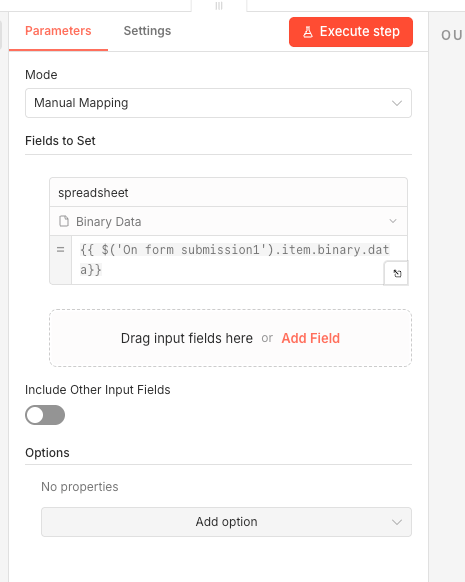
This update is a game changer. Previously, if you had an intermediate node between where binary data was created and where you needed it, the binary data would disappear. You had to restructure your workflow to keep binary data flowing through every node.
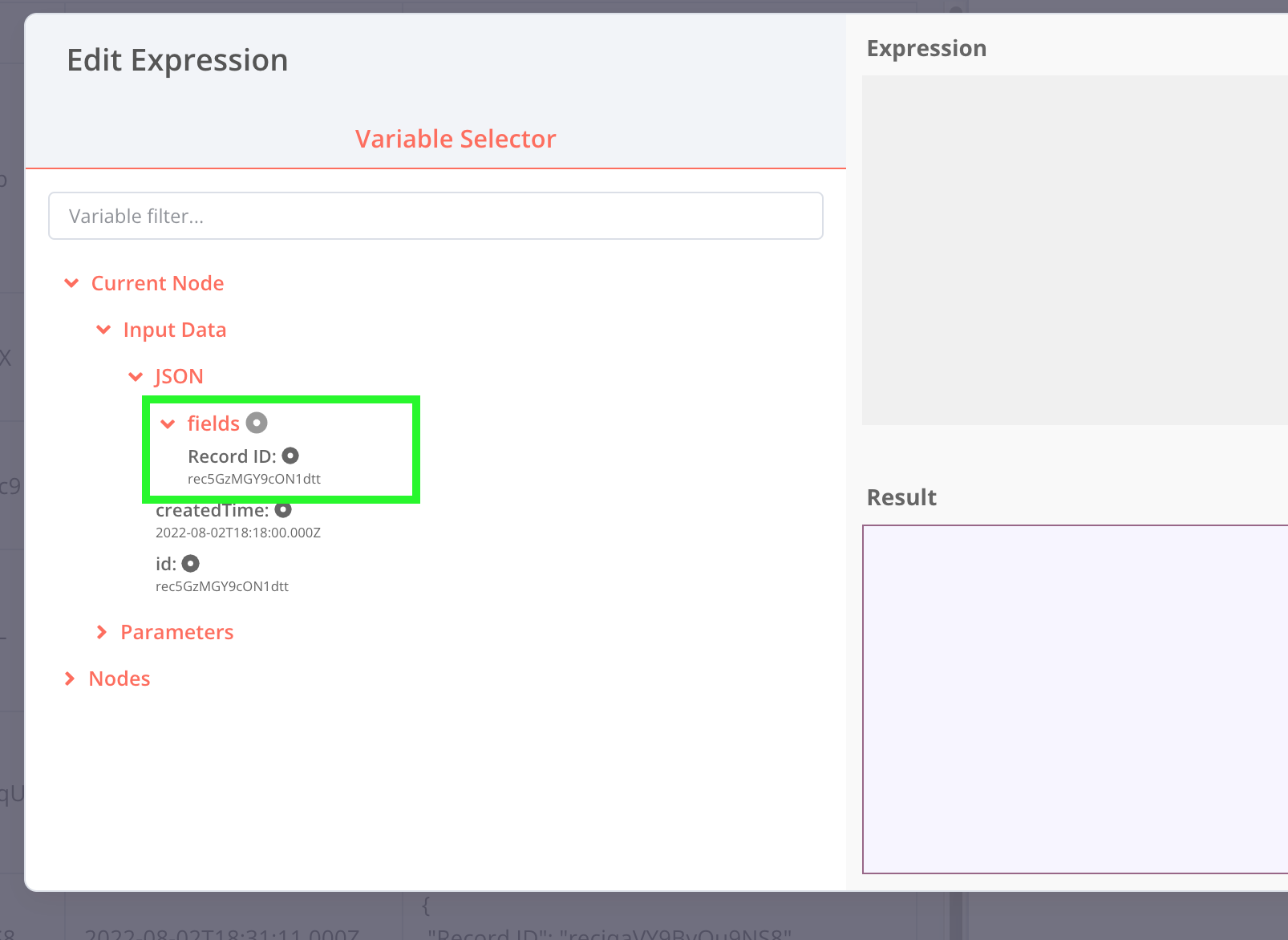
Now you can reference binary data from any previous node using an expression. The format is straightforward: reference the node name, then item.binary, then the binary property name. For example, if your form submission node is called "On Form Submission 1" and the binary property is "binary file", you write that reference in any later node to pull the file back in.
This means you can have nodes in between that only work with JSON data (like an Edit Fields node that adds an ID), and still grab the binary file from an earlier step. No more restructuring workflows just to keep binary data accessible.
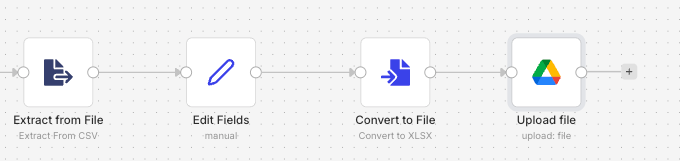
The Convert to File node does the opposite of Extract From File. It takes JSON input data and outputs a binary file. This is one of the most common patterns in n8n: you process data in your workflow, then convert the result into a CSV, XLSX, or other file format for download or upload.
A typical workflow looks like this: pull data from a database or API, process it with code or filter nodes, then use the Convert to File node to create a CSV. From there, upload the file to Google Drive, send it via email, or post it to a Slack channel. Two delivery methods with just a couple of extra nodes.
Some APIs do not send files as binary attachments. Instead, they return images or documents as Base64 encoded strings. Base64 is a way to represent binary file data as plain text, which makes it easier to send through JSON-based APIs.
When you receive a Base64 string from an API, you need to convert it back to its original format. In n8n, use the Convert to File node (or a code node) to transform the Base64 string into an actual image or document file. After conversion, the binary data appears in the output just like any other file.
This comes up frequently when working with AI image generation APIs, document processing services, and any downstream API that returns file data embedded in JSON responses.
Working with binary data is just one piece of the puzzle. If you want custom workflows built for your business, from file processing pipelines and AI agents to full CRM integrations and multi-step automations, we build and deploy them for you. From strategy to implementation, we handle it end to end. Reach out to chat - we're an approved expert partner.

The Move Binary Data node is a legacy node that was deprecated in n8n version 1.21.0. The binary data node disabled status means it has been replaced by two separate nodes: Extract From File (which converts binary data to JSON) and Convert to File (which converts JSON to binary). If you are on a current version of n8n, use Extract From File and Convert to File instead. The move binary data node still appears in older workflows but should not be used for new builds. This is the confirmed and approved workaround from the n8n team.
Binary data used to only pass through nodes that explicitly handled it. If you added an Edit Fields or Code node in between, the binary data would not carry forward. The new update fixes this problem. You can now access binary data from any previous node using expressions that reference the source node name, item.binary, and the binary property name. If you are still stuck on an older version, restructure your workflow so binary data nodes connect directly, or upgrade to access the new expression feature.
Click on the output of any node that produces binary data and look at the Binary tab. The binary property name appears at the top of each file entry. Common default names include "data" and "binary file" but the name depends on which node created it. When configuring downstream nodes like Extract From File, the input binary field must match this exact name. Copy and paste it to avoid errors.
The Extract From File node supports CSV, XLSX, HTML, and JSON formats, plus Base64 conversion. For PDFs, especially those with complex layouts or scanned content, use the Mistral node instead. Mistral handles OCR extraction and returns clean markdown text. The Extract From File node is best suited for structured tabular data like spreadsheets, while Mistral and similar AI nodes handle unstructured documents and images.
The core binary data functionality is the same on both n8n Cloud and self hosting instances. The main difference is file system access: self hosted n8n can use the Read/Write Files from Disk node to read files directly from the server, while n8n Cloud does not have direct file system access. You may also need to enable modules or check flags in your instance settings depending on your deployment. For both environments, form uploads, HTTP request downloads, and cloud storage integrations work identically. The new binary data updates (Edit Fields support and expression access) are available on both n8n Cloud and self hosted once you update to the latest version. Searching returns the same results regardless of deployment type when using the node search feature.

