Claude for Small Business: More Output From the Same Hours, at a Fraction of the Cost of Hiring
Claude for Small Business explained for owners: 43 workflows by department, the tools they
Width.ai
October 20, 2026
Building your first AI agent in n8n is straightforward. Drag in the node, connect a chat model, and you're running. But getting your AI agent to respond the way you actually want? That comes down to how you write your prompts. In this n8n AI agents tutorial, you'll learn exactly how to craft effective system prompts and user prompts through six hands-on examples that go from basic chat input all the way to a fully structured advanced system message.
Whether you want to build AI agents for chatbots, internal tools, or multi-step orchestration, prompt engineering is the skill that separates agents that kind of work from agents that consistently deliver. This guide covers everything: user prompts via chat triggers and defined fields, system prompts with roles and rules, tool integration, error handling, and a complete framework you can reuse across every n8n AI agent you build.
The n8n AI agent node is a visual workflow component that connects to a large language model (like OpenAI or Google Gemini) and can use tools, memory, and structured prompt to perform complex tasks autonomously. It accepts a user prompt (the request) and an optional system prompt (the behavioral instructions) to guide every response.
n8n is a workflow automation platform with a drag-and-drop visual interface. The AI agent node is one of its most powerful components. It lets you build AI-powered chatbots, data processors, and multi-step assistants without writing code. If this is your first AI agent, don't worry. The setup is beginner-friendly.
To set up an AI agent, you need three key components: the AI agent node itself, a chat model (such as OpenAI GPT or Google Gemini via Google AI Studio), and optionally tools and memory. The chat model is the large language model your agent uses to generate responses. Tools give your agent the ability to take actions like querying a database or calling an API. Simple memory lets the agent remember previous messages in a conversation.

A user prompt is the message that drives the conversation. It's the question or request sent into the AI agent. A system prompt is the set of instructions that controls how the agent behaves. The key distinction: a user prompt can be replaced or modified by later user inputs, but a system prompt remains fixed and cannot be overridden by user messages.
Think of the system prompt as the agent's personality and rulebook. It stays constant no matter what questions come in. The user prompt changes every time someone asks something new or data flows in from an earlier node in your workflow.
Here's a simple example: if you're building a baseball historian AI agent, the system prompt would say "You are a baseball historian who researches based on questions provided. If you're unsure about a question, state you do not know." The user prompt would be the actual question. Something like "What are three of the weirdest baseball fields used in the MLB during the early 1900s?"
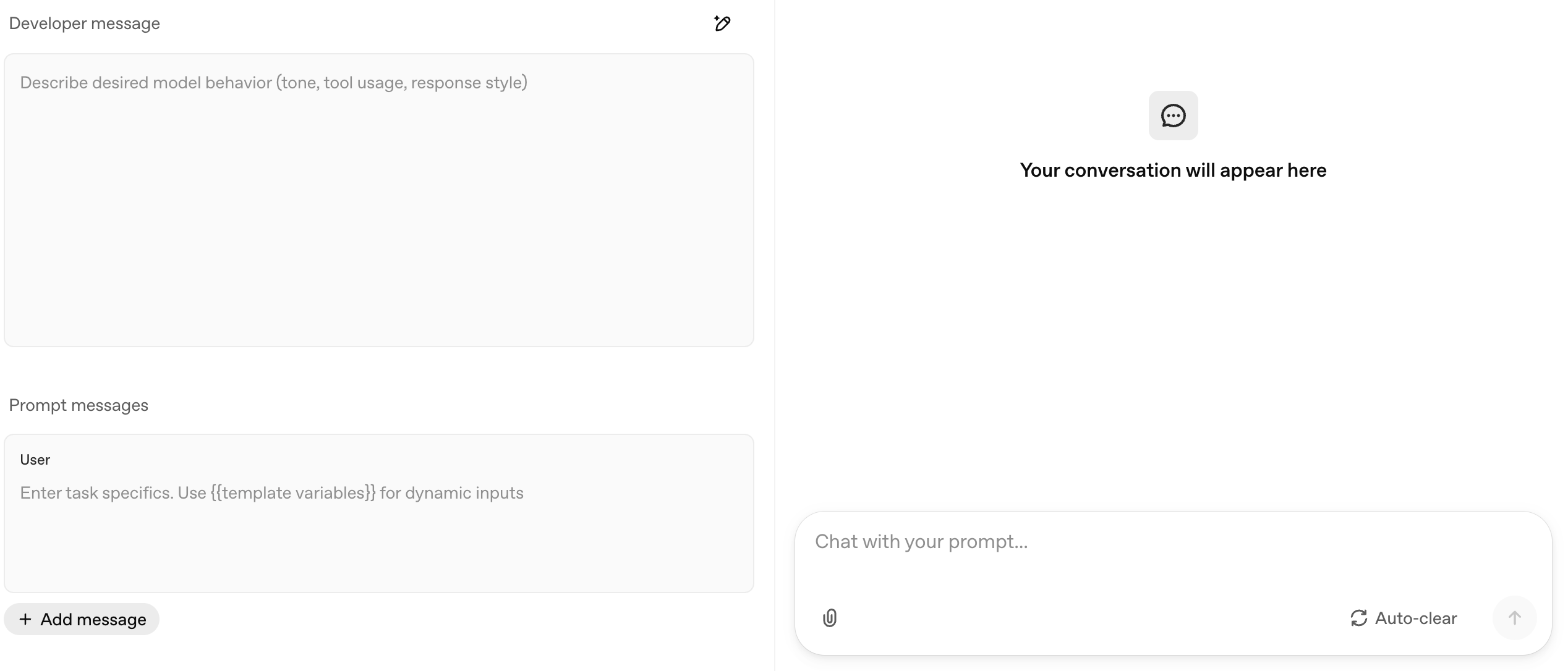
The simplest way to pass a user prompt into an n8n AI agent is through the chat trigger. This creates a chat interface similar to ChatGPT where users type questions directly.
This setup works for any conversational AI agent. Think customer support bots, internal Q&A tools, or personal assistants. The user prompt changes each time someone types a new message and presses enter, and the agent responds based on whatever chat model and instructions you've configured. You can open chat at any time during testing to try different questions.
Not every AI agent is a chatbot. In many n8n workflows, the user prompt comes from data earlier in the workflow. That could be a database query result, a form submission, or a webhook payload. In these cases, you define the prompt directly inside the AI agent node instead of using a chat trigger.
- Add an Edit Fields node (or any data source) before your AI agent. Create a string field with the data you want the agent to process.
- In the AI agent node, change the prompt source from 'Chat Input' to 'Define Below.'
- Write your prompt in the text field, using {{ $json.fieldName }} to dynamically pull in data from the previous node. Press enter after adding expressions to confirm them.
- Connect your chat model, select credential, and run the workflow.
For example, if you have an Edit Fields node with a "boxer" field set to "Jack Johnson," your AI agent prompt could say: "Based on the provided boxer {{ $json.boxer }}, can you give me their win and loss record?" The agent receives the dynamic data and responds accordingly.
This pattern is essential for AI orchestration workflows. Any time you have data flowing through n8n that needs AI processing (categorization, summarization, analysis, enrichment), you define the user prompt directly and inject your data into it. Even a simple workflow with just an Edit Fields node and an AI agent can handle powerful automation tasks.

A system prompt gives your AI agent consistent behavior across every interaction. Without one, your agent defaults to "You are a helpful assistant," which is vague and produces inconsistent outputs. Adding a system prompt takes 30 seconds and dramatically improves response quality. Whether this is your first AI agent or your fiftieth, always write a custom system prompt.
1. Open your AI agent node settings.
2. Click 'Add Option' at the bottom of the configuration panel.
3. Select 'System Message' from the dropdown.
4. Write your system prompt in the text field that appears.
Start with three essentials: a role (who is the agent?), rules (what can and can't it do?), and a format (how should responses look?). Even a simple system prompt like "You are a baseball historian who researches based on questions provided. If you're unsure about a question, state you do not know. If it's an opinion-based question, state that as well since it is not a fact" will produce dramatically better results than the default. Type it in, press enter on any expressions, and you're set.
One important detail about system prompts and the n8n AI agent: the system message cannot be overridden by user input. Someone can ask multiple questions, change topics, or even try to override the rules. The system prompt stays fixed. This is what makes it so useful for keeping agents consistent and on-task.

Several n8n AI nodes come with pre-written system prompts that you can customize. The sentiment analysis node includes a prompt that categorizes text into positive, negative, or neutral. The text classifier has its own classification prompt. And the guardrails node has detailed system messages that control output format and safety rules.
These built-in prompts are a useful starting point. Review them, understand what the n8n team wrote, and customize them for your specific use case. The guardrails node in particular has thorough prompting. It specifies JSON output format, includes numbered rules, and tells the model exactly what to reject. That level of specificity is what you should aim for in your own system prompts.
When you attach tools to an n8n AI agent (like a calculator, a database lookup, or an API connector), you need to mention those tools explicitly in your system prompt. The agent performs better when it knows exactly what tools are available and when to use each one.
Three rules for handling tools in your system prompt:
1. Name and describe: List each tool by its exact name as shown in n8n. Write a clear description of when the agent should use it. Example: "You have access to a calculator if needing to find data for pacing. Example: 40-minute 10K is how many minutes per mile."
2. Add error handling: If a tool can fail (API timeouts, authentication issues), tell the agent what to do. Example: "If the Strava API is not working, state: Error with the Strava API." Without this, the agent may hallucinate results or crash silently.
3. Match names exactly: Keep the tool name in your system prompt identical to the name shown in the n8n tools panel. Also set the tool description field manually in n8n and keep it consistent with what your system prompt says.
A common mistake is overloading an agent with too many tools. Stick to the tools your agent genuinely needs for its specific task. An agent with 15 tools will struggle to choose the right one. An agent with 2-3 well-described tools will select correctly almost every time.

A well-structured system prompt has up to seven components. You don't need every one for every agent, but this framework gives you the full toolkit to build agents that respond consistently, handle edge cases, and produce clean outputs.
Define who the agent is. "You are a marathon running coach that helps runners improve their times to hit Boston qualifying time." The more specific the role, the better the agent stays on topic. Avoid generic descriptions like "you are a helpful assistant."
List every tool the agent can access, when to use it, and what to do if it fails. (Covered in detail in the previous section.)
Tell the agent how to communicate. "Use a tone that you would find with a workout buddy or partner." Tone instructions are especially important for customer-facing chatbots where brand voice matters.
Set hard boundaries. "Only give recommendations based around proven data. If a question is outside of running, say you cannot answer it as you do not have that knowledge. If you need more information, ask another question." Rules prevent the agent from going off-topic or making unsupported claims.
Examples are one of the most powerful ways to reduce hallucinations and get consistent output. Provide 2-3 sample question-and-answer pairs that show the agent exactly what a good response looks like. For example: "Q: Is it okay to add speedwork to a long run? A: Absolutely. This is a common approach in Fitz and Daniels training plans."
Additional background information the agent should know. "If someone asks about marathon training, use the philosophy of Jack Daniels, Fitz, or Hansen." Context grounds the agent in specific knowledge without having to embed that knowledge in every prompt.
Define exactly how responses should look. "Each recommendation should be a maximum of three sentences." For orchestration workflows where another node processes the agent's output, use n8n's structured output option to enforce JSON formatting with specific fields. Press enter to confirm each formatting rule as you add it.

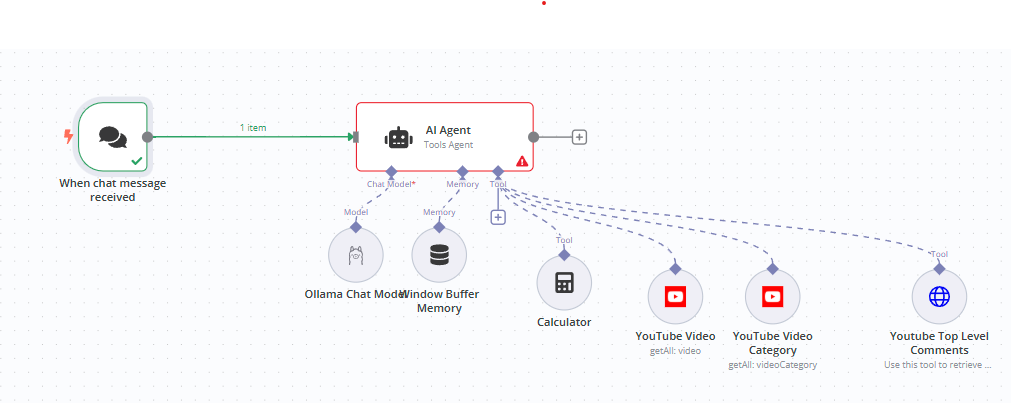
Here's what a fully functional AI agent looks like in n8n with all components connected. The following new workflow uses a chat trigger for input, an AI agent node with a detailed system prompt, an OpenAI chat model, simple memory for conversation history, and two tools (a calculator and a Strava connector).
1. Chat trigger receives the user's question.
2. AI agent node processes the question against the system prompt.
3. Chat model (OpenAI) generates the response using the system prompt as behavioral guidelines.
4. Simple memory stores conversation history so follow-up questions have context.
5. Tools (calculator, Strava) are available when the agent determines it needs them based on the tool descriptions in the system prompt.
The system prompt ties everything together. It tells the agent it's a marathon running coach, defines when to use each tool, sets the communication tone, establishes rules about only giving proven recommendations, provides example responses, adds context about specific training philosophies, and limits each answer to three sentences.
Based on research papers and real-world testing, here are the most important things to remember when writing prompts for n8n AI agents:
A system prompt defines the AI agent's behavior, tone, rules, and identity. It stays fixed across all interactions. A user prompt is the actual question or data sent to the agent, and it changes every time. In n8n, the system prompt is set in the AI agent node's options, while the user prompt comes from a chat trigger or a defined field.
Open the AI agent node, click 'Add Option' at the bottom, and select 'System Message.' A text field appears where you write your system prompt. By default it says 'You are a helpful assistant.' Replace this with a specific role, rules, and formatting instructions for your use case. You'll also need to make sure your API key is configured in your chat model credential.
Yes, and you should. The system prompt sets the rules (who the agent is, how it responds, what it can and can't do), and the user prompt provides the specific request. They work together. The system prompt stays constant while the user prompt changes with each new input.
The n8n AI agent node supports multiple AI models including OpenAI (GPT-4, GPT-4o), Google Gemini (via Google AI Studio), Anthropic Claude, and others via the chat model connector. To connect any of these, create a new credential in n8n and paste your API key. Each provider requires its own API key, so sign up on their platform to get one.
Keep it focused. Two to four tools is ideal for most use cases. Too many tools (10+) make it harder for the agent to select the right one. Each tool should be clearly described in both the system prompt and the n8n tool description field so the agent knows exactly when to use it. Sign up for any third-party API you plan to use as a tool, grab the API key, and create a new credential in n8n before connecting it.
Writing effective prompts for AI agents is just the beginning. If you need custom n8n workflows built for your business (AI-powered chatbots, data pipelines, multi-agent orchestration, or full automation systems), we design and deploy them for you. From prompt engineering to production deployment, we handle it end to end. Reach out today.