n8n vs LangGraph for Production AI Workflows: Which Should You Use?
When to use n8n vs langgraph for ai builds based on your stack, dev team, and more.
Katarzyna Rojewska
September 29, 2026
Making a QR code for a Google Form takes about thirty seconds. Copy the form's share link, paste it into any free generator, download the image, print it. People scan it, the form opens, responses arrive in your spreadsheet. For collecting responses this is a solved problem, and it works exactly as well as it sounds like it should.
Then somebody uses the same trick for event check-in, and thirty seconds of setup meets a door. A staff member scans a ticket. The phone thinks for a moment and shows a page that says the response has been recorded. The attendee is standing there waiting. The queue is standing behind the attendee. And nobody on that door knows whether the ticket was real, whether it was refunded last Tuesday, or whether somebody walked in twenty minutes ago holding a screenshot of the same code.
That is not a setup mistake. A form submission confirms receipt, not validity. The form's job ends the moment the answer is written down, and every check worth running happens afterwards, in a spreadsheet nobody at the door is looking at. The scan and the verdict end up in two different places, and only one of them is at the door.
So there are two jobs here and only one of them is hard. Making the code is a paragraph, and it is the next section. Making the scan answer back, on the same phone, inside the two seconds a queue will tolerate, with something a staff member can act on, is everything after that. There is a working n8n workflow for it that you can import.
Four steps, none of which need a paid tool.
Three things go wrong often enough to be worth naming. Do not run the link through a second shortener, because two redirects is one more thing that can fail and the code is already as small as it needs to be. Check the form's access setting, because a form restricted to your organization sends everyone outside it to a login wall, which reads as a broken code to the person scanning. And give the code quiet space around it, since contrast and margin matter more than size for a reliable scan.
That is the whole of the easy half. Everything below is about what happens next.
A form is built to accept answers. Used as a check-in scanner it does that faithfully, which is the problem, because accepting an answer and approving an entry are not the same act. Four things break, in roughly the order they will hurt you.
Staff see a receipt, not a verdict. The confirmation page is identical for a valid ticket, a fabricated code, and one that was refunded on Tuesday. The person on the door has to either wave everybody through or go and look at a spreadsheet between scans, and at a real door they will do the first one.
Nothing checks history. A QR code is a string. It does not get consumed by being scanned, and a screenshot of it forwards perfectly over any messaging app. Catching a reused ticket means comparing this scan against every previous scan, which is a lookup the form never performs.
Nothing checks the ticket's own rules. Cancelled, refunded, valid only on Saturday, general admission trying to enter a VIP area. All of that lives in your participant sheet as columns nobody is reading at the moment of entry.
There is one door and one rule set. A main entrance and a VIP area need different answers for the same ticket, and a single form submission has no idea which door it came from.
Each of these is fixable. None of them is fixable inside the form, because all four need something to happen between the scan and the screen.
The workflow below runs on n8n and uses an n8n form rather than a Google Form for one reason: the form submission and the page that comes back are the same workflow run, so the result of the lookup can be rendered onto the phone that did the scanning. Everything else stays where it already is. The participant list is a Google Sheet, the scan log is a Google Sheet, and the hardware is whatever Android phones your staff already carry.
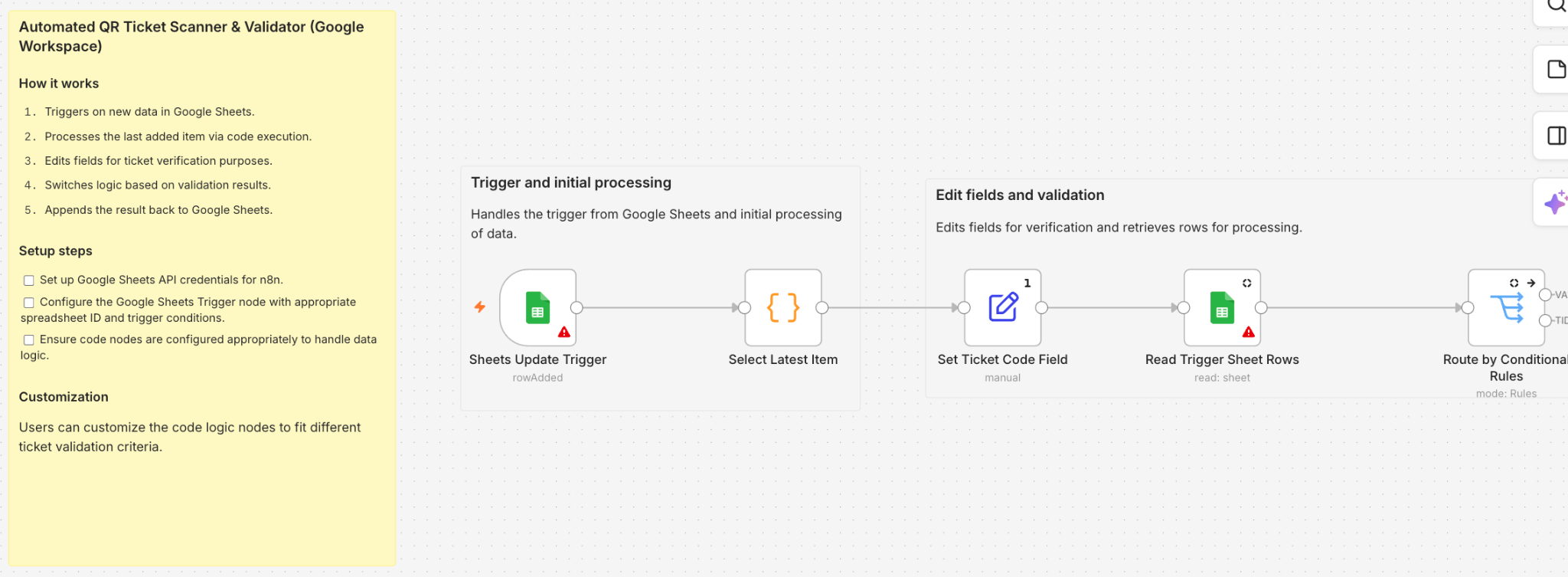
Two nodes, and the second one exists entirely because of how scanner apps behave.
Ticket Scanner. A mobile-friendly form at /form/ticket-scanner with one required QR code field and a Check Ticket button. A hidden checkpoint field is filled from the link, so appending ?checkpoint=VIP%20Area to the URL is all it takes to turn one phone into a different door.
Clean Scan. Keyboard scanner apps frequently append a trailing space or a line break to what they type, and a code with an invisible character on the end matches nothing. This node trims that, records the checkpoint, defaulting to Main Entrance when the link carried none, and stamps the scan time and date in the workflow's time zone.
The time zone detail matters more than it looks. Scan dates drive both the valid-date rules and the duplicate checks, so a workflow running in the wrong zone will start rejecting tickets a few hours before or after midnight and nowhere else, which is a miserable thing to debug at an event.
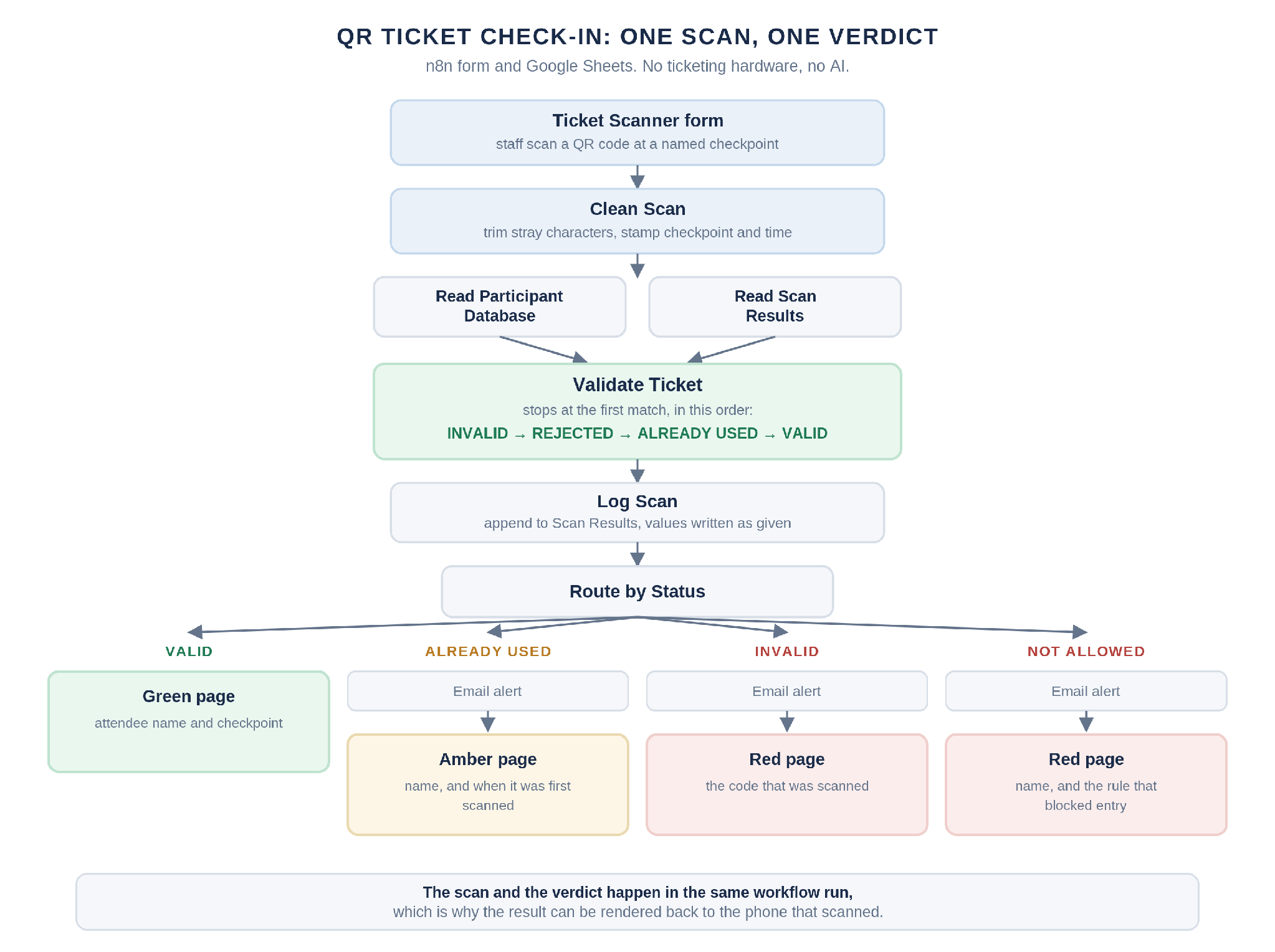
Three nodes: two reads and the decision.
Read Participant Database pulls your master participant sheet. Date cells are read as serial numbers rather than formatted strings, so valid-date rules behave the same whether the sheet was created in a US or European locale.
Read Scan Results pulls the scan log once, for duplicate checking. An empty sheet is fine and the workflow carries on, which is what happens on the first scan of the day.
Validate Ticket finds the scanned code and decides the outcome. It checks in a fixed order and stops at the first match, which is what makes the result predictable.
The order is a design decision worth keeping. A cancelled ticket presented twice reports the cancellation rather than the duplicate, because the reason staff need to give at the door is the one that stops the argument fastest.
Each rule only runs if its column exists in your participant sheet, so the system starts as a plain does-this-code-exist check and gains strictness as you add columns.
STATUS
Rejects tickets marked cancelled, canceled, refunded or void, ignoring case
VALID_DATES
Rejects the ticket on any other day. A date cell, or text such as 2026-09-14, 2026-09-15 for multi-day passes
TICKET_TYPE
At checkpoints listed in CHECKPOINT_ACCESS, rejects types that are not allowed there. Unlisted checkpoints admit everyone
A naive duplicate check marks a ticket used forever the first time it is seen, which breaks the two most common ticket types you sell. A multi-day pass has to work again tomorrow. A VIP ticket has to scan at the main entrance and then again at the VIP door twenty minutes later. Scoping the check to the same checkpoint on the same day handles both without any extra configuration, and still catches the thing you are actually worried about, which is the same code entering the same door twice.
Log Scan appends the scan to the Scan Results sheet. Values are written exactly as given rather than being interpreted, which keeps codes like 00123 from losing their leading zeros and keeps dates as dates. That matters because this sheet is the input to tomorrow's duplicate checks, so a value that gets mangled on the way in stops matching on the way out. New columns are added automatically, so there is nothing to set up beyond an empty tab.
Route by Status sends the scan down one of four paths. Everything after this point is about telling a human what happened.
Every logged row carries the scan time, the scan date used for duplicate checks, the checkpoint, the ticket code, the status, a reason, the attendee's name where the ticket was found, and every column from the participant sheet. The reason field is the one to care about: it holds text like Ticket is cancelled or First scanned at 2026-09-14 09:12:00, which is what turns the log into something you can settle a dispute with after the event.
Four full-screen pages, colour-coded so a staff member reads them at arm's length without focusing.
Valid
Green page with the attendee's name and the checkpoint
Already used
Amber page with the attendee's name and when the ticket was first scanned
Invalid
Red page with the scanned code
Not allowed
Red page with the attendee's name and the rule that blocked entry
Each page carries a Scan next ticket link that returns to the scanner form at the same checkpoint, so a staff member never has to retype a URL or remember which door they are on.
Send Alert emails the result, reason, code, attendee, checkpoint and time for already used, invalid and not allowed scans. It runs before the result page and is set to continue on error, which is the important part: if Gmail is slow or the credential has expired, the door still gets its answer. An alerting failure should never become an entry failure.
Import the workflow, then work through these in order. Budget half an hour the first time.
Then run three test scans before doors open: a known valid ticket, a code that does not exist, and the valid ticket a second time. Those three cover the paths staff will actually hit, and finding a problem in them takes two minutes rather than an argument in front of a queue.
One hardening step worth taking. In the Ticket Scanner node, set Authentication to Basic Auth so the scanner URL is not something an attendee can open and use to test which codes work.
The pattern holds across the workflows we publish: the interesting nodes are the ones that stop something rather than the ones that do the work. Five more of our n8n workflows are written up the same way, guards included.
Making a QR code for a Google Form really is a thirty-second job and nothing here changes that. The gap is between a form that records an answer and a system that returns one. If that is what you actually need, the workflow JSON and the full setup guide are both public.
Import it, point it at a sheet with ten fake tickets in it, and scan the same one twice. That takes about ten minutes and tells you more about whether this fits your event than any amount of reading will.
Width.ai builds custom n8n and AI automation systems. This template handles a door with a spreadsheet behind it, and we extend workflows like it with your ticketing platform, your access rules, offline fallbacks and error handling that holds up on the day. Tell us what your check-in looks like now and where it breaks.
You can, and it will record every scan correctly. What it cannot do is show the result to the person scanning, because a Google Form's confirmation page is written before the lookup runs and has no access to the outcome. That is fine if you are collecting attendance for later analysis and nobody is being turned away. It does not work at a door where somebody has to make a decision.
Scans fail, because every check is a live lookup against Google Sheets. Test the signal at the actual door position rather than in the lobby, and if it is unreliable, a phone on a mobile hotspot is a cheaper fix than a ticketing system. This is the real constraint on the whole approach and it is worth checking before the day.
Each scan makes two reads and one write, so a busy door can reach Google's per-minute quota for one account. If you are moving thousands of people through in a short window, split checkpoints across separate Google accounts or move the participant list somewhere with a higher ceiling.
Once. The first scan of that code at that checkpoint on that day comes back valid, and every scan after it comes back Already used with the time of the first entry, which is the information a staff member needs to have the conversation. There is no way to tell an original from a screenshot by looking at the code, because they are the same code, so the defence is history rather than the image.

